
How do I pause a member?
Pausing a member temporarily removes them from future reporting while preserving their account.
To pause a member:
Go to the Members page.
Find the member you want to pause and click the Edit (✏) icon.
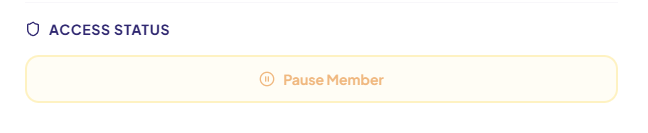
Scroll down to the Access Status section.
Click Pause Member.
The member is now paused.
Please note:
If a member is paused during the current month, their progress will still be included in the current month's data.
The member will be excluded from reporting starting the following month (from the first Monday of the month).
How do I unpause a member?
Unpausing a member restores their access to the platform and includes them in reporting again.
To unpause a member:
Go to the Members page.
Find the member you want to unpause and click the Edit (✏) icon.
Scroll down to the Access Status section.
Click Unpause Member.
The member is now active.
Please note:
Once a member is unpaused, they are immediately included in the current month's reporting and total data.
Still need help?
If you're unable to pause or unpause a member after following the steps above, please contact [email protected].
To help us investigate the issue, please include:
The name and email address of the member you're trying to pause or unpause.
The organisation and site where the member belongs.
A brief description of the issue or any error message displayed.
A screenshot of the Edit Member window or the issue (recommended).
Providing this information will help our Support team diagnose and resolve the issue more quickly.